While working on business improvement for buyers at work, I received a consultation about “Excel text input has been slow lately and it’s troubling,” so I researched and practiced solutions. Here are the steps I took.

- I referenced this article → MacのExcel(エクセル)での文字入力が極めて重い時の解決策 | iDEACLOUD BLOG
Preparation - Quit Excel application
The first thing you should do is “quit Excel.”
If you forget this, deleting configuration files or cache files won’t solve the slow Excel problem.
I actually forgot the step of quitting Excel and ended up in a situation where “Excel’s slowness won’t get better…”
Fix font file duplicates
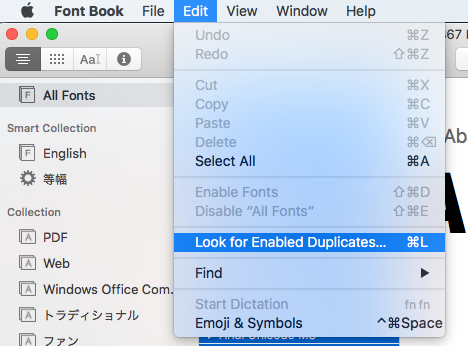
- Open Font Book app from Applications
- Select all fonts in All Fonts

- Resolve font duplicates
Delete preference plist files
- From Finder, press Shift + ⌘ + G and enter ~/Library/Preferences/ in the dialog box

- Delete the following configuration files

- com.microsoft.Excel.plist
- com.microsoft.office.plist
Delete cache
- From Finder, press Shift + ⌘ + G and enter ~/Library/Caches/ in the dialog box

- Delete the Microsoft folder

Summary
These are the steps to fix slow performance in Excel for Mac.
Excel is really terrible if you can’t use it properly without deleting configuration and cache files because it’s too slow.
That’s all from the Gemba.